Documentation
GitHub Integration
Interact with Terragon directly from GitHub
Interact with Terragon directly from GitHub through app mentions, while Terragon handles PR creation and branch management automatically.
GitHub App Mentions
To mention @terragon on GitHub, you must grant Terragon access to the repository you're tagging it in. You can do this in Settings, the repository selector in the prompt box, or in Environments.
How It Works
Mention @terragon in GitHub to start a new Terragon task:
@terragon can you fix the failing tests?@terragon implement the feature described above@terragon this method could be optimized using memoizationWhat Happens
When you mention Terragon:
Terragon immediately reacts with a 👀 emoji to acknowledge your request
Terragon receives full context about the PR/issue and your comment
You'll see the task appear on the Home page.
Task Creation Behavior
By default, Terragon keeps a single task per pull request or issue. Repeat mentions of @terragon on the same thread are added as follow-up messages so the conversation history stays in one place.
If you want each mention to kick off a fresh task, enable Create new task when @terragon is tagged on GitHub in GitHub & Pull Request Settings. With this toggle on, Terragon always creates a brand-new task—complete with its own sandbox and timeline—whenever you tag the app on GitHub, even if a task already exists for that PR or issue.
Separate tasks mean separate sandboxes and timelines. Enabling this setting is useful for parallel work or reviewer-specific follow-ups, but you will lose the consolidated discussion history and may need to keep an eye out for duplicated effort.
This preference applies to your Terragon account across every repository you have access to; it is not configurable per repo. Changing the setting does not modify any existing tasks—those continue exactly as they were when they were created.
Model Selection
The model selected for a GitHub mention is selected based on the following priority:
- Model specified in the comment (e.g.,
@terragon [sonnet] ...) - Model configured in a "GitHub Mention" automation (if one exists)
- Your default model specified in GitHub & Pull Request Settings.
- The last model used in the task (If not creating a new task)
- Your last selected model in the dashboard.
If an @terragon mention follows up on an existing task, Terragon uses the first selected model that is valid for the agent. For example, if a task is already using Claude Code, specifying @terragon [gpt-5.1] ... will have no effect on the model Terragon selects.
Here's a table of how to specify the model for each agent directly in the GitHub mention comment:
| Agent | Model | Example |
|---|---|---|
| Claude Code | Sonnet | @terragon [sonnet] ... |
| Claude Code | Haiku | @terragon [haiku] ... |
| Claude Code | Opus | @terragon [opus] ... |
| Codex | GPT-5.2 | @terragon [gpt-5.2] ... OR @terragon [gpt-5.2-medium] ... |
| Codex | GPT-5.2-Low | @terragon [gpt-5.2-low] ... |
| Codex | GPT-5.2-High | @terragon [gpt-5.2-high] ... |
| Codex | GPT-5.1 | @terragon [gpt-5.1] ... OR @terragon [gpt-5.1-medium] ... |
| Codex | Codex Max (Low) | @terragon [gpt-5.1-codex-max-low] ... |
| Codex | Codex Max (Medium) | @terragon [gpt-5.1-codex-max] ... OR @terragon [gpt-5.1-codex-max-medium] ... |
| Codex | Codex Max (High) | @terragon [gpt-5.1-codex-max-high] ... |
| Codex | Codex Max (XHigh) | @terragon [gpt-5.1-codex-max-xhigh] ... |
| Codex | GPT-5.1 Codex (Low) | @terragon [gpt-5.1-codex-low] ... |
| Codex | GPT-5.1 Codex (Medium) | @terragon [gpt-5.1-codex-medium] ... |
| Codex | GPT-5.1 Codex (High) | @terragon [gpt-5.1-codex-high] ... |
| Codex | GPT-5 | @terragon [gpt-5] ... |
| Gemini | Gemini 3 Pro | @terragon [gemini-3-pro] ... |
| Gemini | Gemini 2.5 Pro | @terragon [gemini-2.5-pro] ... |
| OpenCode | Grok Code Fast 1 | @terragon [grok-code] ... |
| OpenCode | Qwen3 Coder 480B | @terragon [qwen3-coder] ... |
| OpenCode | Kimi K2 | @terragon [kimi-k2] ... |
| OpenCode | GLM 4.6 | @terragon [glm-4.6] ... |
| OpenCode | Gemini 2.5 Pro | @terragon [opencode/gemini-2.5-pro] ... |
| Amp | Amp | @terragon [amp] ... |
Prompt & Trigger Customizations
You can customize the prompt for a GitHub mention using the "GitHub Mention" automation. Users on the pro tier can also customize and enable bots to mention @terragon on GitHub to kick off tasks for them.
How Terragon Works with GitHub
Automatic PR Creation
When working on a task, Terragon:
Opens a pull request with:
- Comprehensive description
- Test plan checklist
- Co-author attribution to Terry
- Links to Terragon task
GitHub CLI Access
Every sandbox includes GitHub CLI, allowing Terragon to:
# View PR details and comments
gh pr view 123 --comments

# Check issue information
gh issue view 456

# Understand repository context
gh repo view
Custom GitHub Token: Terragon automatically sets the GH_TOKEN environment variable to authenticate the gh CLI. If you need custom permissions you can override it by adding your own GH_TOKEN in Environment Variables. Your custom token will take precedence.
Working with Issues
Reference issues in your prompts:
Fix the authentication bug described in issue #234Terragon will fetch issue details and link the PR appropriately.
Quick GitHub Actions
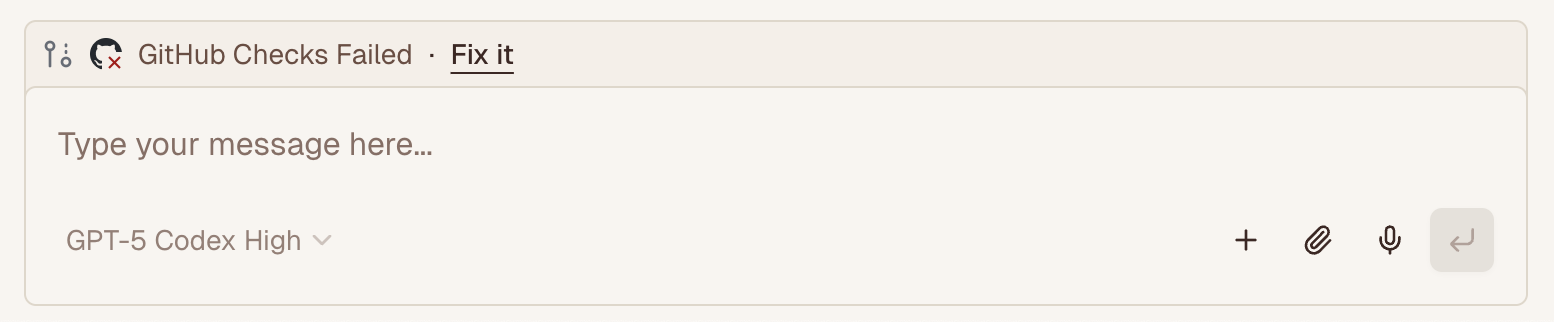
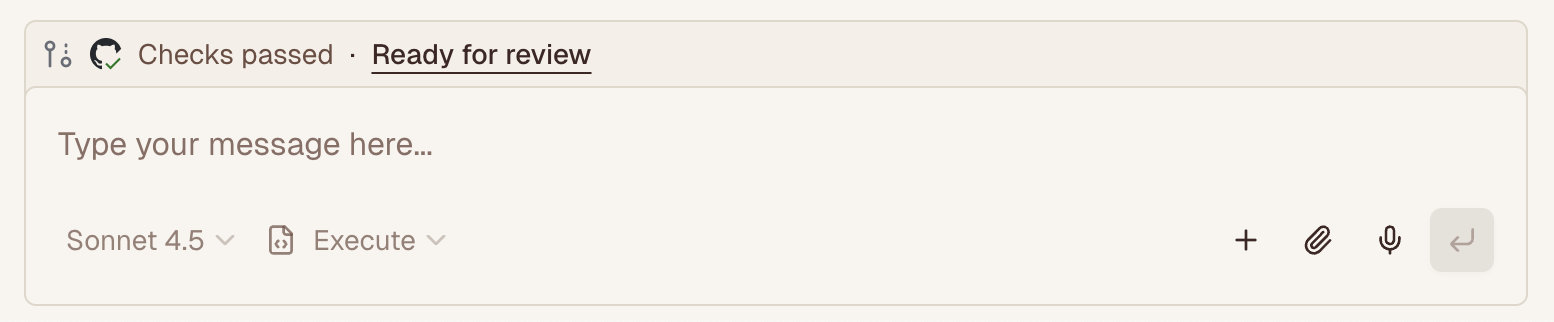
For tasks with associated pull requests, Terragon provides quick actions directly above the prompt box to help you manage CI workflows:
Fix Failing CI Checks
When your PR has failing GitHub checks, a Fix it button appears so you can:
- Automatically create a follow-up message to the agent to address CI failures
- Let the agent investigate and fix the failing tests or checks
- Help get your PR back to a passing state faster
Mark PR as Ready for Review
When your draft PR has all checks passing, a Ready for review button appears to:
- Mark your draft PR as ready for review with one click
- Signal to your team that the changes are ready for feedback
- Move your PR forward in the review process
These actions help you move faster by reducing context switching between Terragon and GitHub.
Having issues with GitHub integration? See our Common Issues guide for solutions to common problems.
For information about security and permissions, see our dedicated Security & Permissions page.